
Image Converter – JPG, PNG, WEBP & AVIF
Image converter and resizer: convert to JPG, PNG to JPG, WEBP and AVIF with quality control. Batch convert, never uploads.
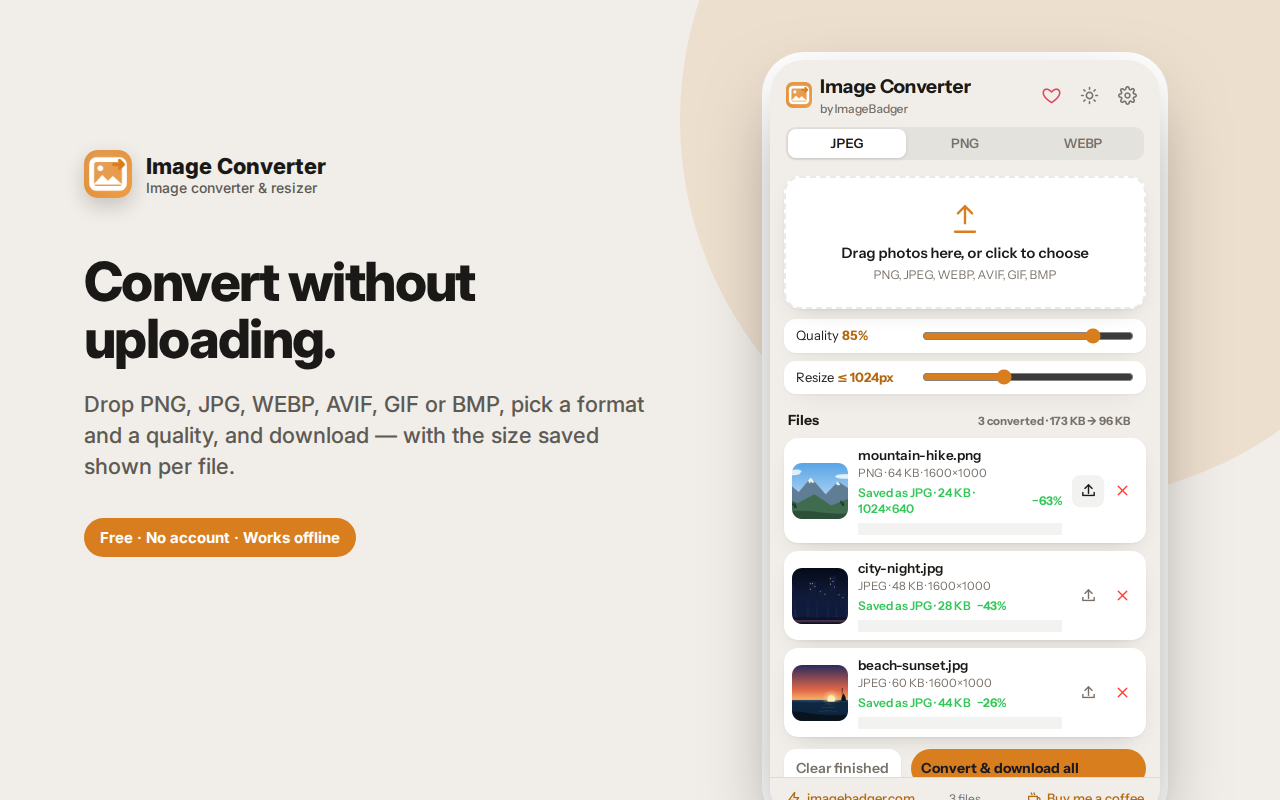
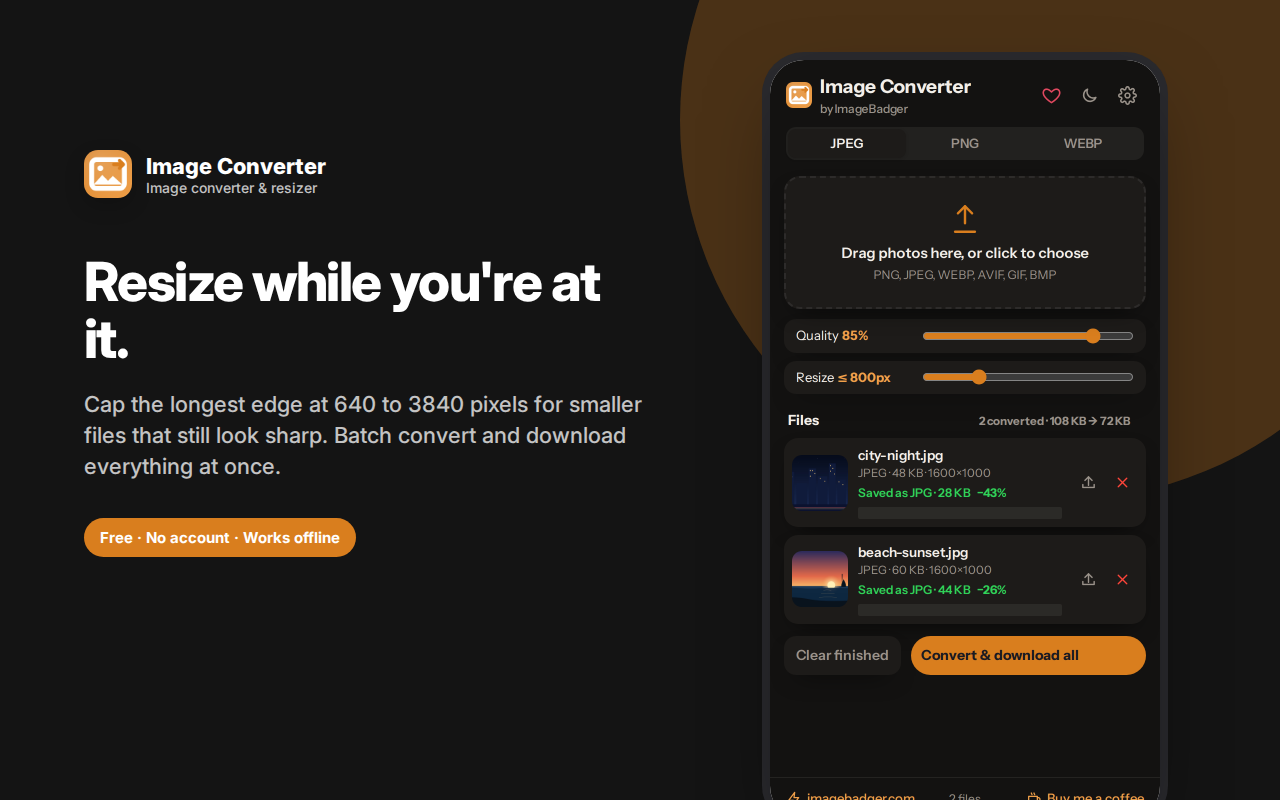
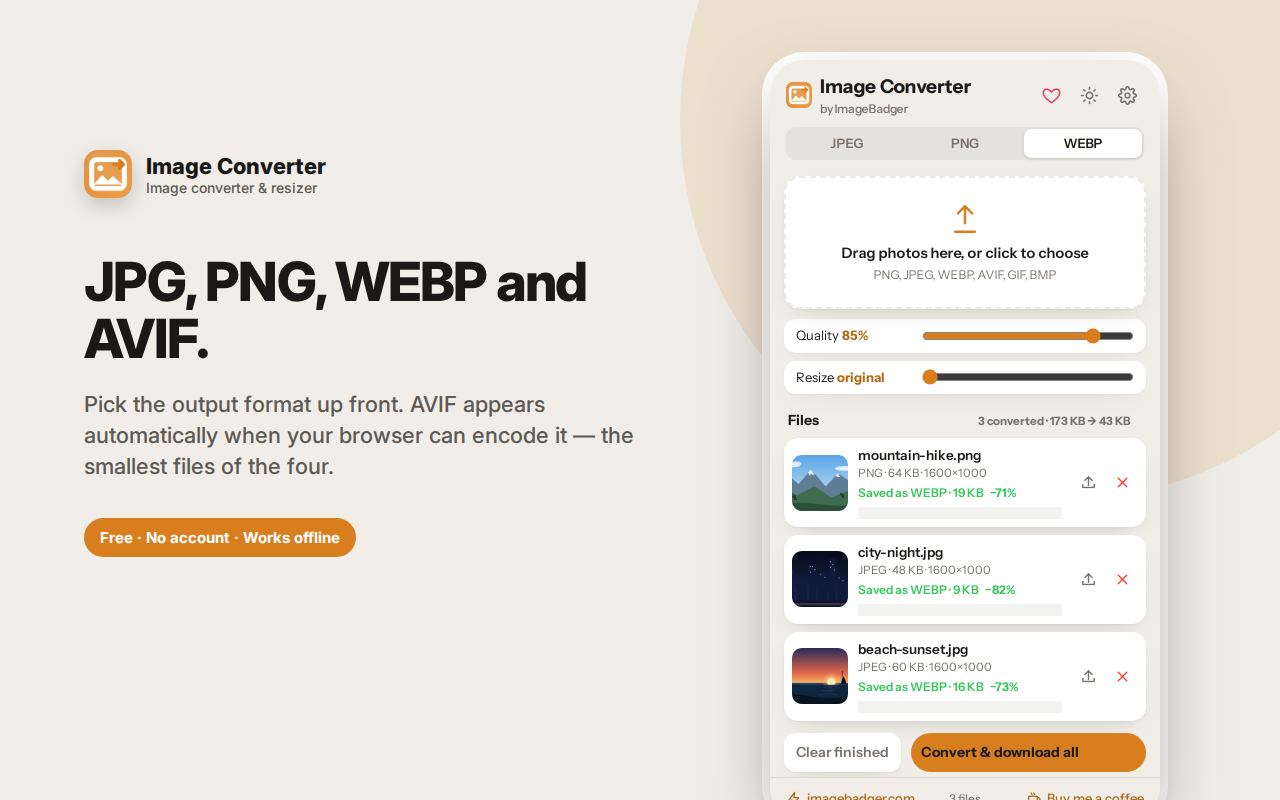
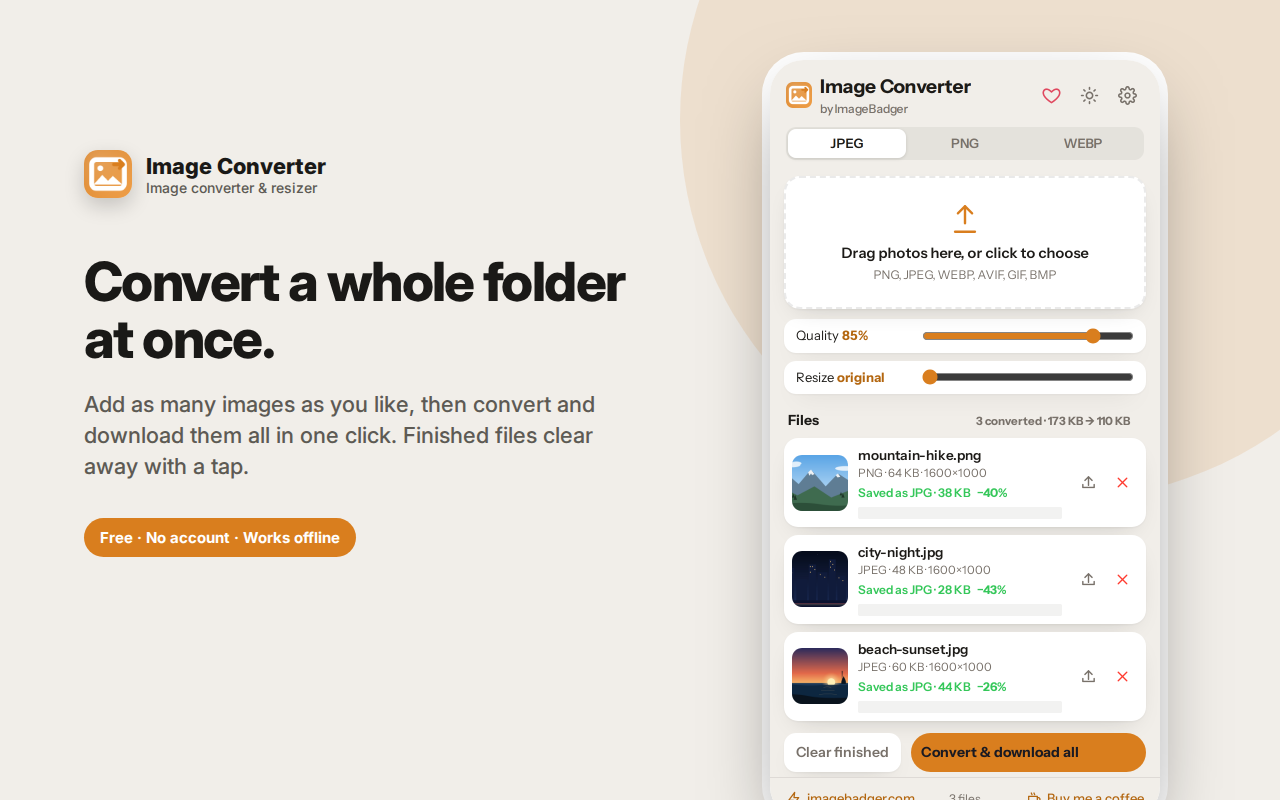
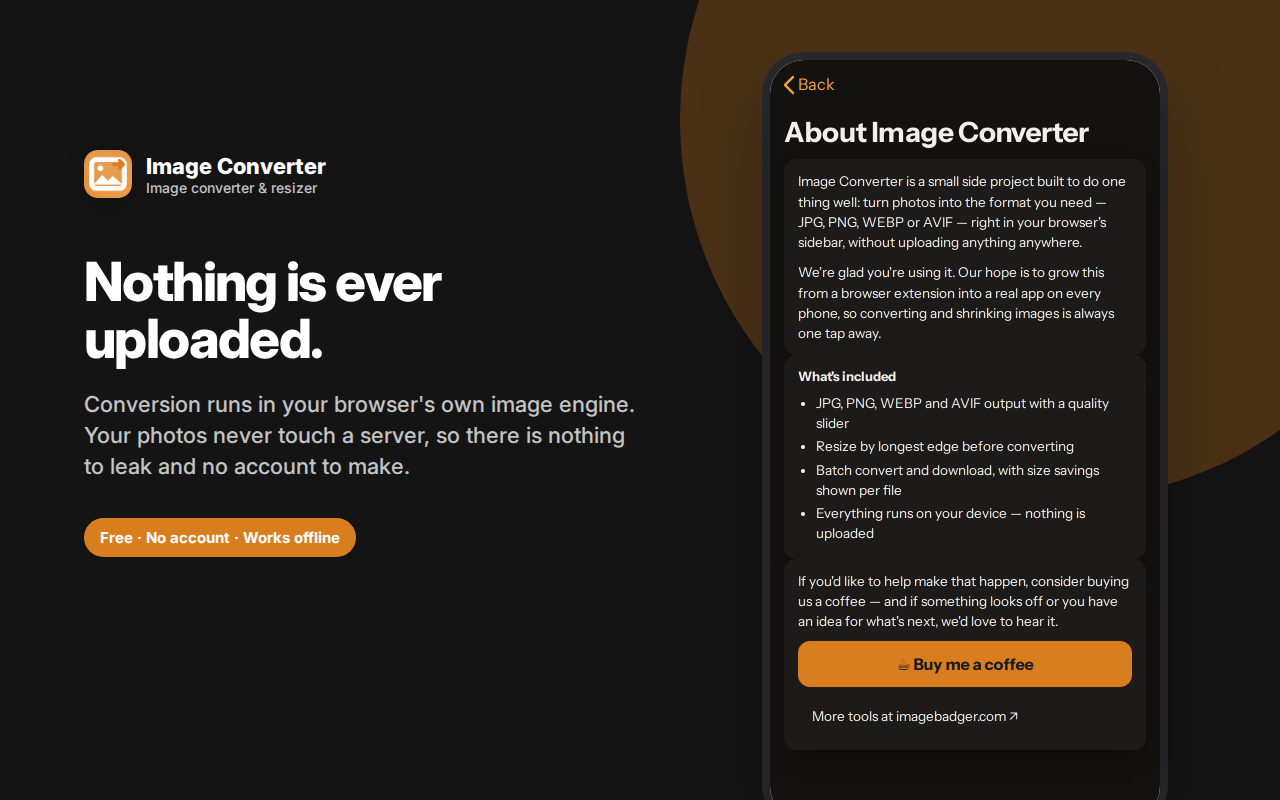
Image Converter changes image formats and sizes entirely in your browser — nothing is uploaded to any server.
Drop in PNG, JPG, WEBP, AVIF, GIF or BMP and convert to JPG, PNG, WEBP or AVIF with a quality slider. PNG to JPG and convert to JPG are the most common conversions, and both take one click.
Resize while you convert by capping the longest edge between 640 and 3840 pixels — usually where the real file-size savings come from with camera photos and screenshots.
Every file shows its original format, size and dimensions, then the new size and the percentage saved — shown honestly in red on the rare occasions a conversion makes a file bigger.
Batch convert as many files as you like, keep original filenames or append "-converted," and clear finished files with a tap.
Free, offline, no account, and no photo ever leaves your device.
Image Converter changes image formats and sizes right in your browser sidebar — no uploading, no waiting on a queue, no watching your photos travel to someone else's server.
Why "no upload" actually matters
Almost every free image converter on the web works the same way: you upload your file, a server processes it, you download the result. That means your photo — which might be a passport scan, a medical document, a product shot under embargo, or just a picture of your kids — sits on a stranger's machine. Most of those sites promise to delete files "within an hour," which is a promise you have no way to verify.
Image Converter uses your browser's own built-in image engine. The file never leaves your computer, because there's nowhere for it to go. There is no server involved in this extension at all.
Formats in and out
Drop in PNG, JPG, WEBP, AVIF, GIF or BMP. Convert out to:
- JPG — the universal format for photos; smallest files, no transparency
- PNG — lossless, keeps transparency; right for logos, screenshots and graphics
- WEBP — typically 25–35% smaller than JPG at the same visual quality, supported by every modern browser
- AVIF — the newest format, smaller again than WEBP, available when your browser can encode it
A quality slider (10–100%) controls the trade-off for JPG, WEBP and AVIF. PNG is lossless, so the slider hides itself rather than pretending to do something.
Resize while you convert
Cap the longest edge at 640, 800, 1024, 1280, 1600, 1920, 2560 or 3840 pixels. This is usually where the real file-size savings come from — a 4000-pixel photo from a phone camera doesn't need to be 4000 pixels wide to sit in a blog post or an email. Aspect ratio is preserved and the resampling is high quality, so downsized images stay sharp.
See exactly what you saved
Every file shows its original format, size and dimensions. After converting, it shows the new size and the percentage saved, in green when the file got smaller and red when it got bigger. That last case is real — converting a small PNG icon to JPG can inflate it — and the app tells you honestly rather than hiding it.
A running summary across all files shows the total before and after, so you can see "2.4 MB → 640 KB" at a glance.
Batch friendly
Add as many files as you like. Convert and download them individually as you go, or hit Convert & download all. Keep the original file names, or add "-converted" so nothing overwrites in your Downloads folder. Clear finished files with one tap and keep going.
Frequently asked questions
Which format should I use for a website?
WEBP for photos and most images — it's smaller than JPG at equivalent quality and is supported everywhere that matters now. Keep PNG only where you need transparency, and use AVIF if you want the smallest files and your audience is on recent browsers.
Why is my converted PNG bigger than the JPG I started with?
PNG is lossless, so it stores every pixel exactly. A photograph converted from JPG to PNG will almost always grow, often dramatically. PNG is for graphics, screenshots and transparency — not for photos.
What quality setting should I use?
80–85% is the sweet spot for JPG and WEBP: visually near-identical to the original for most images, at a fraction of the size. Below about 70% you start seeing artefacts in skies and gradients.
Does it strip EXIF data?
Because the image is redrawn from its pixels, metadata like GPS coordinates and camera info does not survive the conversion. That's a useful side effect for privacy, though if stripping metadata is your actual goal, a dedicated tool gives you a clearer view of what was in the file first.
Can it handle HEIC photos from an iPhone?
It accepts them if your browser can decode HEIC, which varies by browser and platform. If a HEIC file fails, converting it on the phone first is the reliable path.
Does it work offline?
Completely. There are no network requests at any point.
Is there a file size limit?
No hard limit, but very large images are constrained by your device's memory, since everything is processed locally. Typical camera photos and screenshots are comfortably fine.
Does converting reduce quality?
Converting to a lossy format (JPG, WEBP, AVIF) re-encodes the image, so there's some loss — controlled by the quality slider. Converting to PNG is lossless. Converting an already-compressed JPG repeatedly does compound the loss, so work from the original where you can.
Can I convert several images at once?
Yes. Add as many as you like and use Convert & download all. Each file shows its own before-and-after size.
Why is it free with no upload?
Because there's no server to pay for. The conversion runs in your browser's own image engine, which is also why nothing you convert is ever visible to anyone but you.
Who this is for
- Web developers and bloggers compressing images before publishing
- Anyone emailing photos that are too large to send
- Designers converting between formats for different deliverables
- Marketplace sellers resizing product photos to a platform's limits
- Anyone who'd rather not upload personal photos to an anonymous website
Private by design
No account, no sign-in, no cloud, no analytics, no ads, no network requests. Your images are processed on your device and never transmitted anywhere.
Convert to JPG, and other common conversions
Convert to JPG when you need the smallest file for a photo, an email attachment, or a site that rejects other formats. PNG to JPG is the single most common conversion people search for, and it's usually the right call — a photo saved as PNG is often several times larger than it needs to be with no visible benefit.
Going the other way, JPG to PNG makes sense only when you need transparency or you're about to edit the image repeatedly. It won't recover quality that JPG compression already discarded.