
ImageOff – Hide Images, Video & Ads for Focus
Hide images, block images and disable images on any site. Image blocker for faster, distraction-free reading.
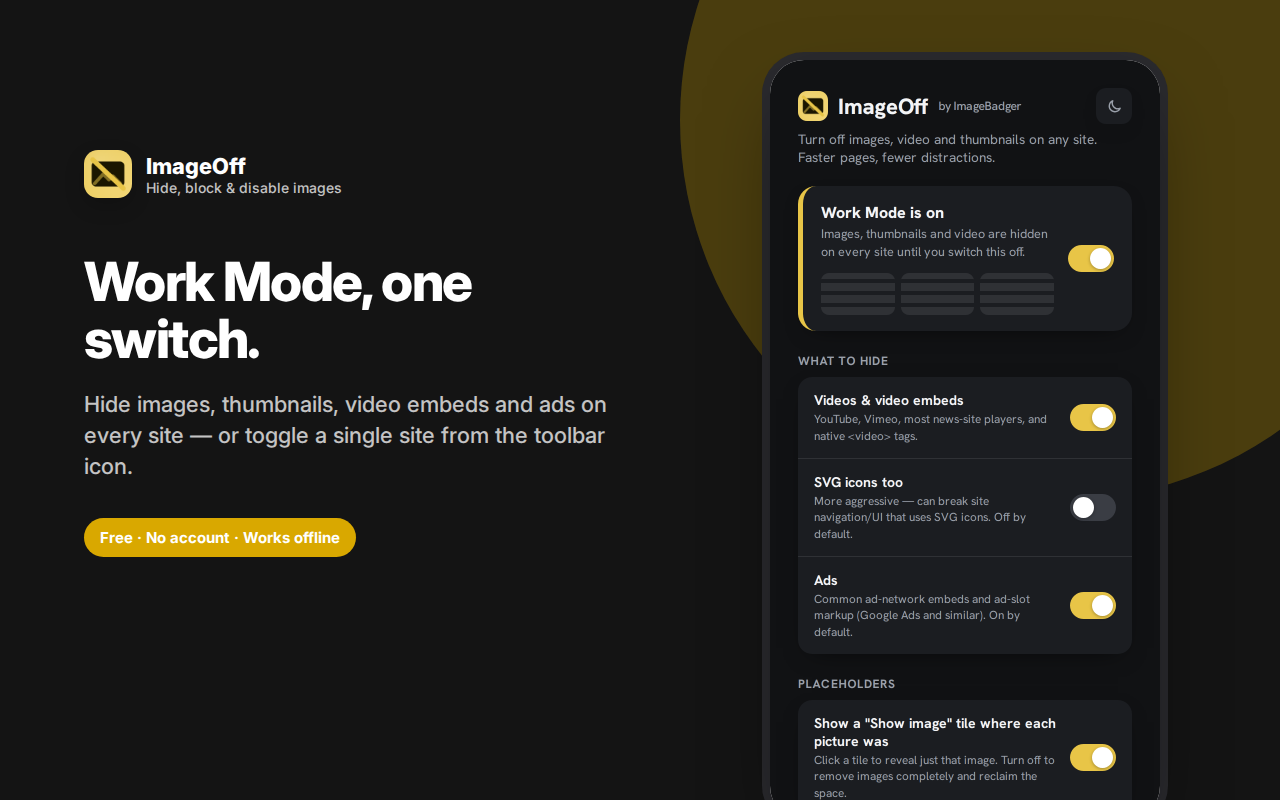
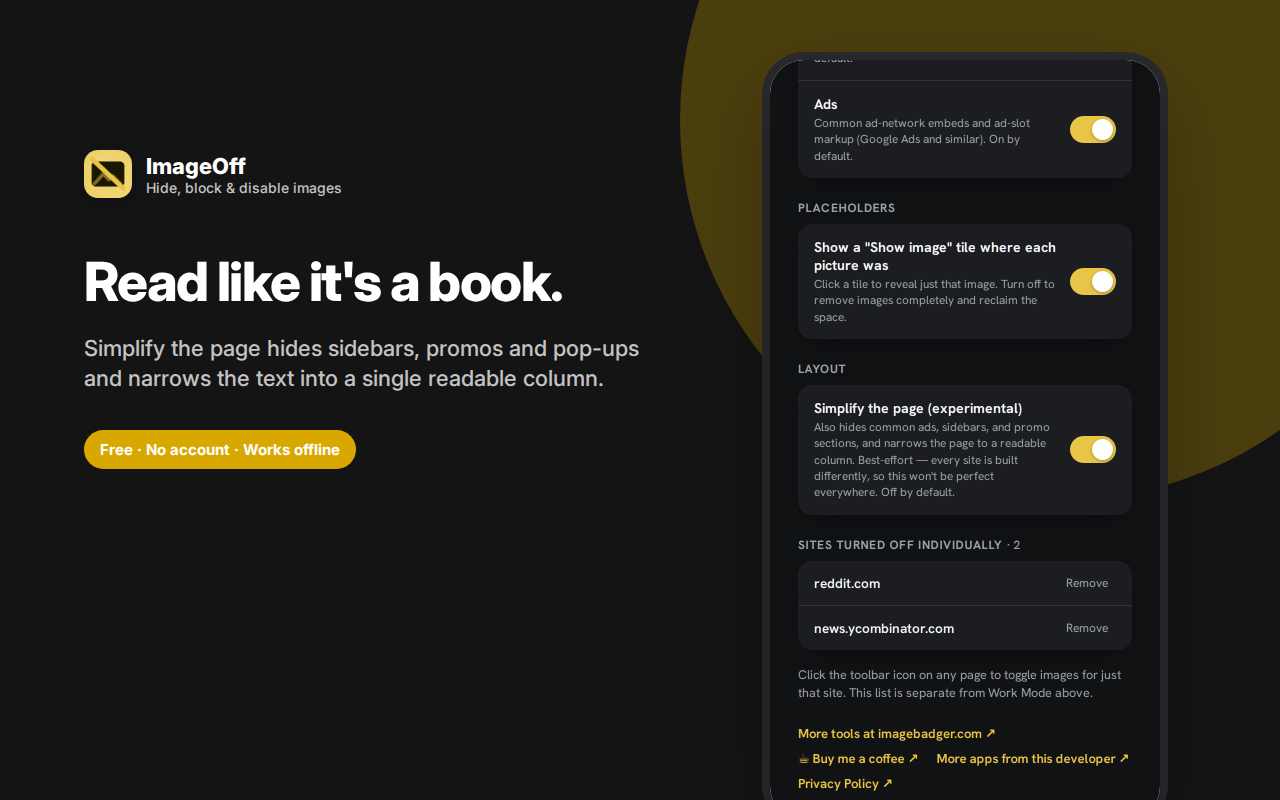
ImageOff lets you hide images, block images and disable images on any website — pages get faster, lighter and far less distracting.
Turn on Work Mode for every site, or click the toolbar icon to turn images off for just the site you're on.
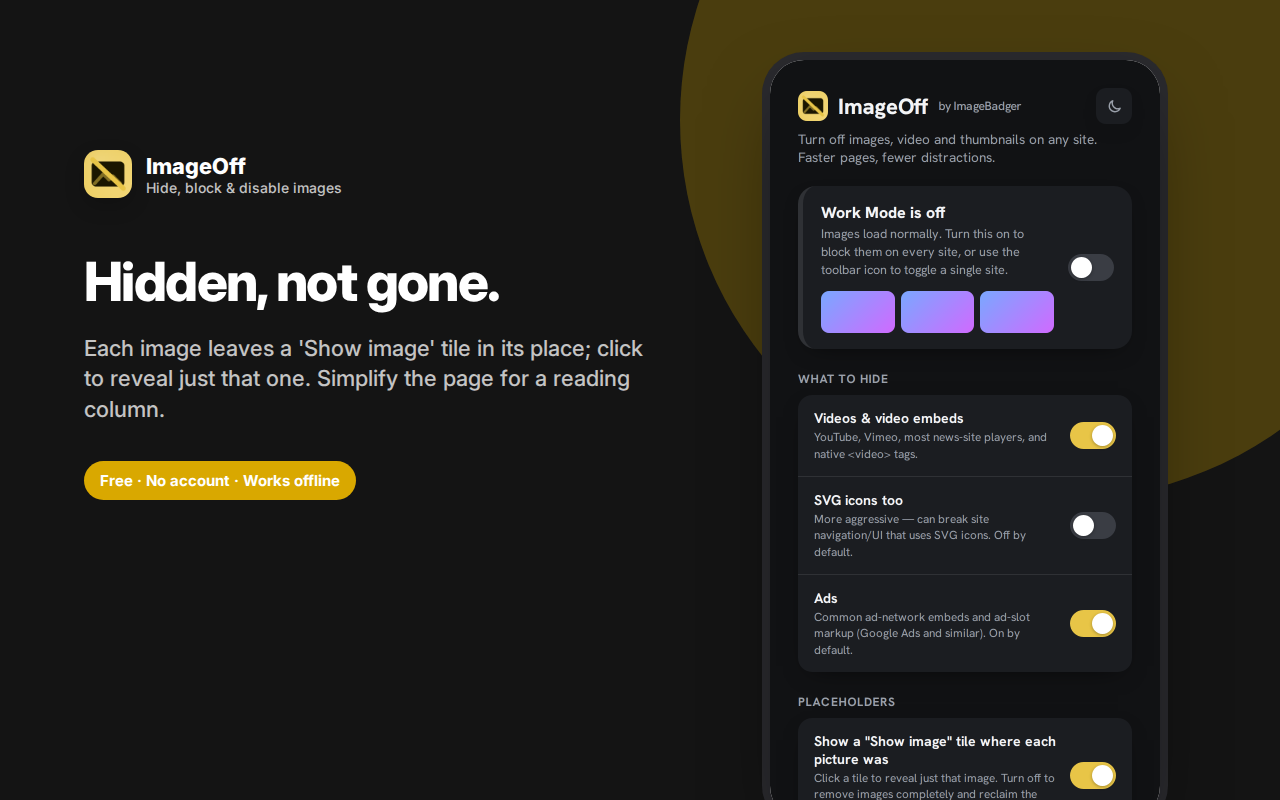
Unlike most image blockers, hidden images leave a "Show image" tile exactly where the picture was, with the image's description when the site provides one. Click a tile to reveal that one image without turning anything off. Prefer the space back? Turn placeholders off and images are removed entirely.
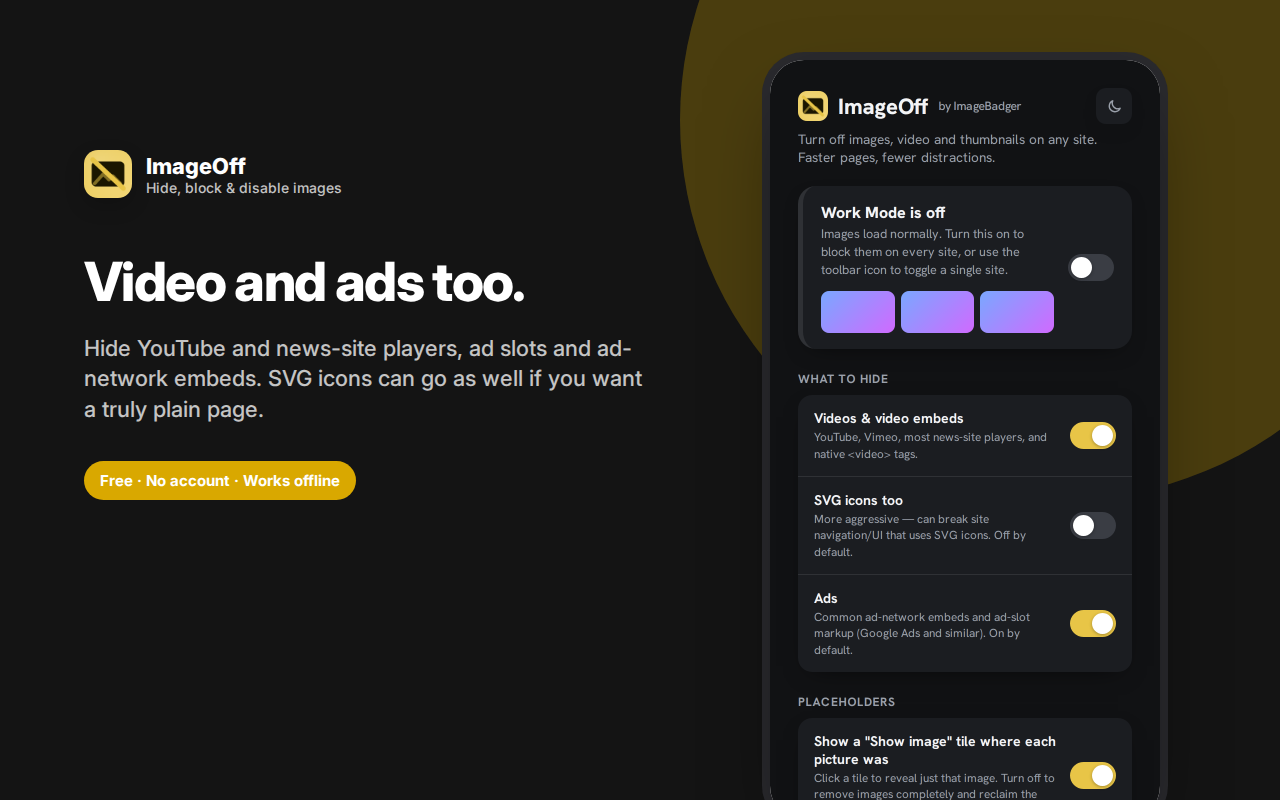
Choose what gets hidden: images and thumbnails, video embeds (YouTube, Vimeo, news players), ad slots, and optionally SVG icons. A Simplify option narrows pages to a readable column.
Useful for focus, faster loading, metered connections, working in public, and avoiding unwanted imagery.
No page content is ever read, collected or transmitted.
ImageOff turns the pictures off. Hide images, video embeds, thumbnails and ad slots on any site — pages get faster, lighter and dramatically less distracting, and you can bring back any single image with one click.
Why you'd want images off
- Focus — an article without autoplaying video and thumbnail bait is a genuinely different reading experience
- Speed — images are the bulk of most pages; without them, sites load almost instantly
- Data — on a metered connection, tethering, or hotel wifi, images are where your allowance goes
- Avoiding upsetting content — news sites in particular pair difficult stories with graphic imagery
- Working in public — a screen full of unpredictable images in an open office or a café
- Older hardware — image-heavy pages are what makes a slow machine feel slow
Hidden, not gone
Most image-blocking extensions remove images entirely, collapsing the layout and leaving you unable to tell whether you missed something important.
ImageOff instead leaves a "Show image" tile exactly where the picture was, in the same size and position — with the image's alt-text description when the site provides one. Click a tile and just that image appears. The page layout stays intact, you keep the context, and you decide image by image what's actually worth loading.
Prefer the space back? Turn placeholders off and images are removed completely.
Two ways to use it
- Work Mode — one switch, images off on every site, until you switch it back
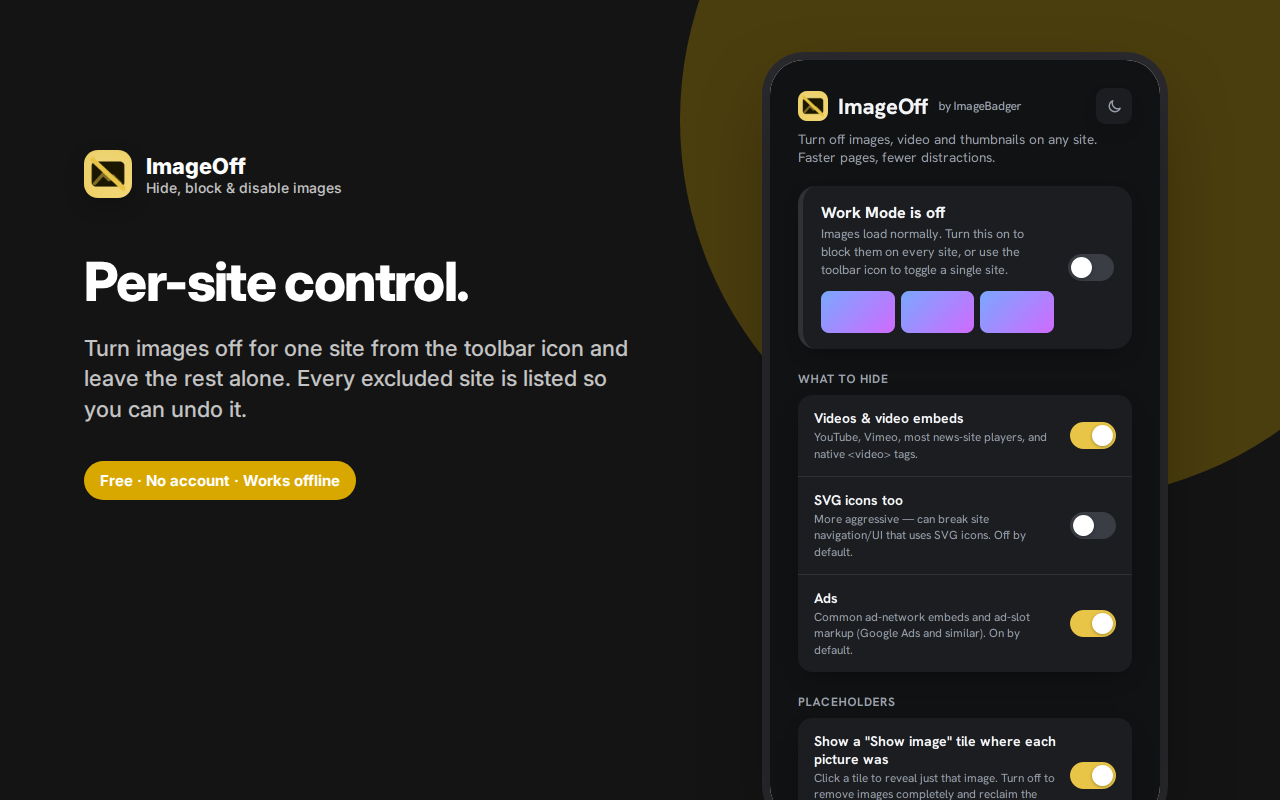
- Per-site — click the toolbar icon to turn images off for just the site you're on, with a list of excluded sites you can manage
Most people run per-site day to day and flip on Work Mode when they need to concentrate.
Choose what gets hidden
- Images and thumbnails — the core behaviour
- Video and embeds — YouTube, Vimeo, news-site players and native video tags
- Ads — common ad-network embeds and ad slots, on by default
- SVG icons — more aggressive; can break site navigation, so it's off by default and clearly labelled as such
- Simplify the page — an experimental reader-style option that also hides sidebars, promos and pop-ups and narrows text to a readable column
Frequently asked questions
Does this block ads?
It hides common ad embeds and ad slots as a side effect of hiding images, which removes most visual advertising. It isn't a full ad blocker — it doesn't filter network requests or handle text ads and trackers. Use it alongside a dedicated blocker if that's your goal.
Does hiding images save bandwidth?
Partly. Images hidden with CSS may still be requested by the browser, so the saving is mostly in rendering rather than data. The reliable data savings come from your browser's own image-blocking setting; this extension's strength is control and reversibility.
Will it break websites?
Basic image hiding is safe on essentially any site. Turning on "SVG icons too" is the one that can break navigation on sites that use SVG for buttons, which is why it's off by default and flagged. Simplify mode is best-effort — every site is built differently, so it won't be perfect everywhere.
Can I still see an image if I need to?
Yes — that's the point of the placeholder tiles. Click one and that single image loads, without turning the extension off.
Does it read my browsing?
No. The script it runs on pages only changes how they display in your own browser. It doesn't read page content, doesn't collect anything, and doesn't transmit anything anywhere.
Why does it need permission for all sites?
Because you might want to use it on any site. It requests broad access so it can act wherever you choose, but it does nothing on any site until you turn on Work Mode or enable that specific site.
Block images or disable images — what's the difference?
People search for several things that mean roughly the same outcome. To block images usually means stopping them appearing at all; to disable images often means turning them off site-wide; to hide images implies they're still there if you want them.
This extension does all three, and the distinction is a setting rather than a different product: leave placeholders on and images are hidden but one click away, or turn placeholders off and they're removed entirely, reclaiming the layout space.
Is this a text-only browser mode?
Close to it. With images, video and ads all hidden, most pages become text and links — the substance without the surrounding noise. Simplify mode goes further by narrowing content to a readable column.
Will hiding images make pages load faster?
Rendering is noticeably faster, especially on image-heavy pages and older hardware. Whether the image data is still downloaded depends on how the site loads them, so treat the speed gain as real and the data saving as partial.
Can I block images on just one website?
Yes. Click the toolbar icon on any site to turn images off there only, leaving every other site untouched. The excluded list is manageable from the options page.
Does it block video too?
Video and embeds are hidden by default, covering YouTube, Vimeo and most news-site players. You can turn that off independently if you want images gone but video kept.
Who this is for
- Students and researchers reading long articles
- Writers and developers who want documentation without decoration
- Anyone on a slow or expensive connection
- People who find image-heavy news genuinely distressing
- Anyone working in a public space
- People with older or low-powered hardware
Private by design
No account, no sign-in, no cloud, no analytics, no ads. Your settings and site list are stored locally in your own browser. No page content is read, collected or transmitted, and there's no server involved.
Getting the most out of it
For focused reading, turn on Work Mode with placeholders enabled. You keep the article structure and can pull in the one diagram that actually matters while ignoring the twelve stock photos and the autoplaying video.
For maximum speed on a slow connection, turn placeholders off. Removing images entirely reclaims the layout space and gives you the shortest possible page.
For news sites specifically, the combination of image hiding plus ad hiding transforms the experience more than either alone — a huge share of a news page's weight and visual noise is the two combined.
Start with per-site rather than Work Mode. Turn it on for the two or three sites that genuinely bother you and live with that for a few days. Work Mode everywhere is a bigger change than people expect, and the usual outcome of enabling everything at once is uninstalling it a day later.
A note on what "hidden" means
Images are hidden at the display level — the page is told not to show them. This is what makes instant, per-image reveal possible without a reload. If your goal is strictly to stop images being downloaded at all, your browser's own image setting (in site settings) does that more aggressively, at the cost of the flexibility this extension gives you.