
NoteFlow – Sidebar Notes, Checklists & Folders
Sidebar notes and sticky notes: checklists, formatting, folders, search, one-tap copy and Markdown export. Works offline.
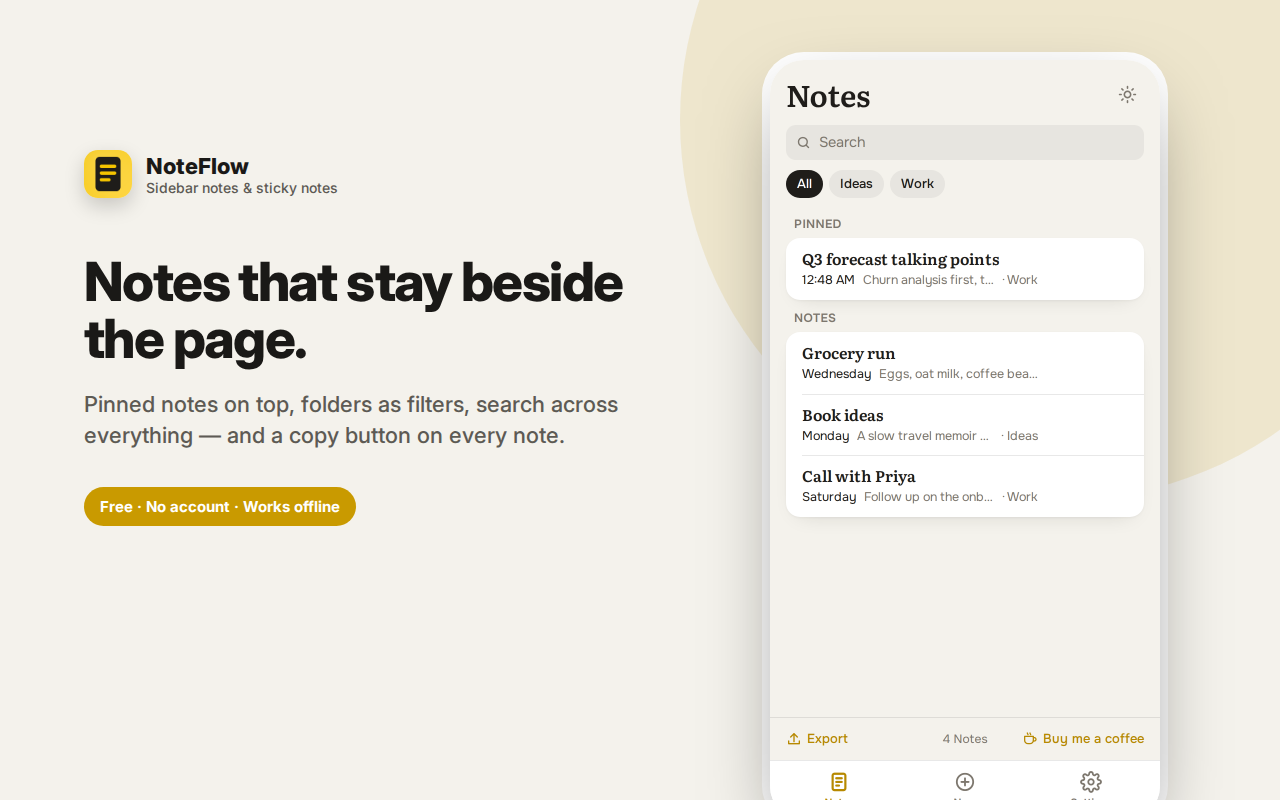
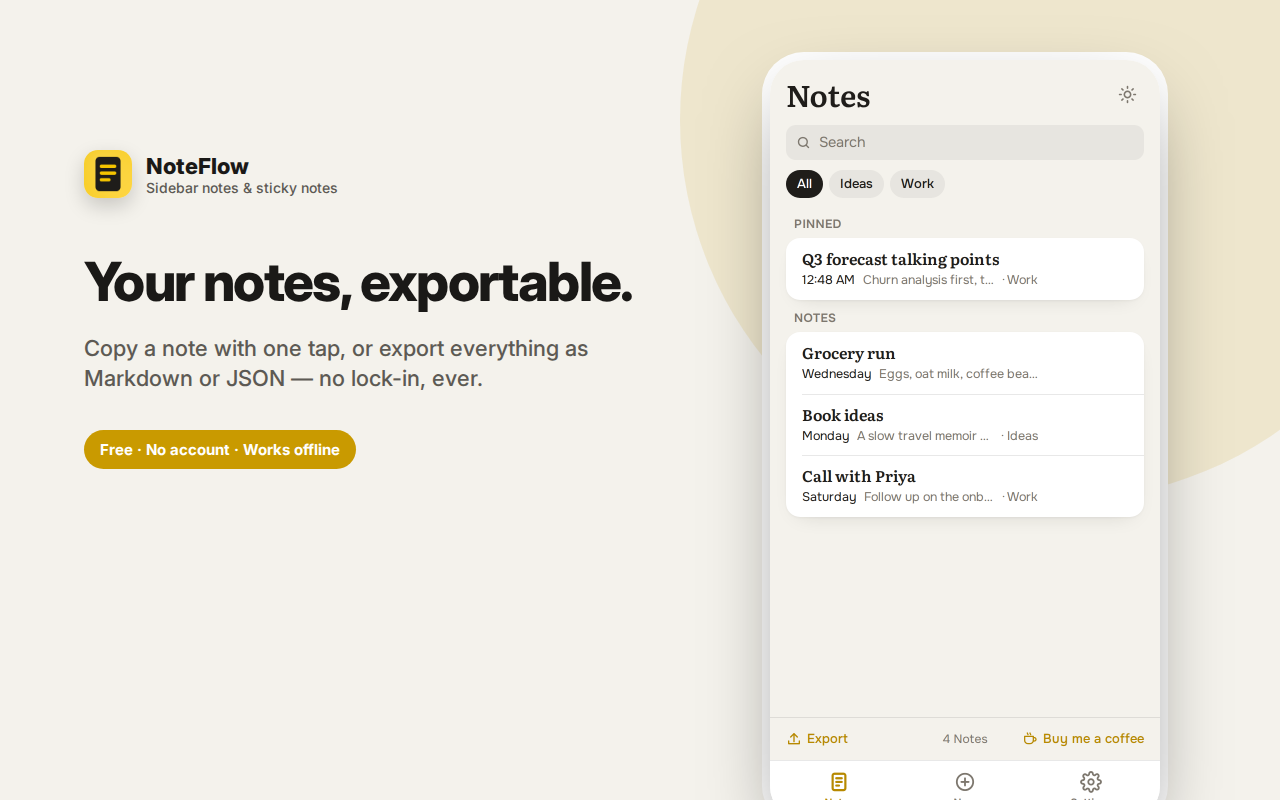
NoteFlow keeps your notes in the browser sidebar, next to whatever you're reading — so capturing a thought doesn't mean switching apps.
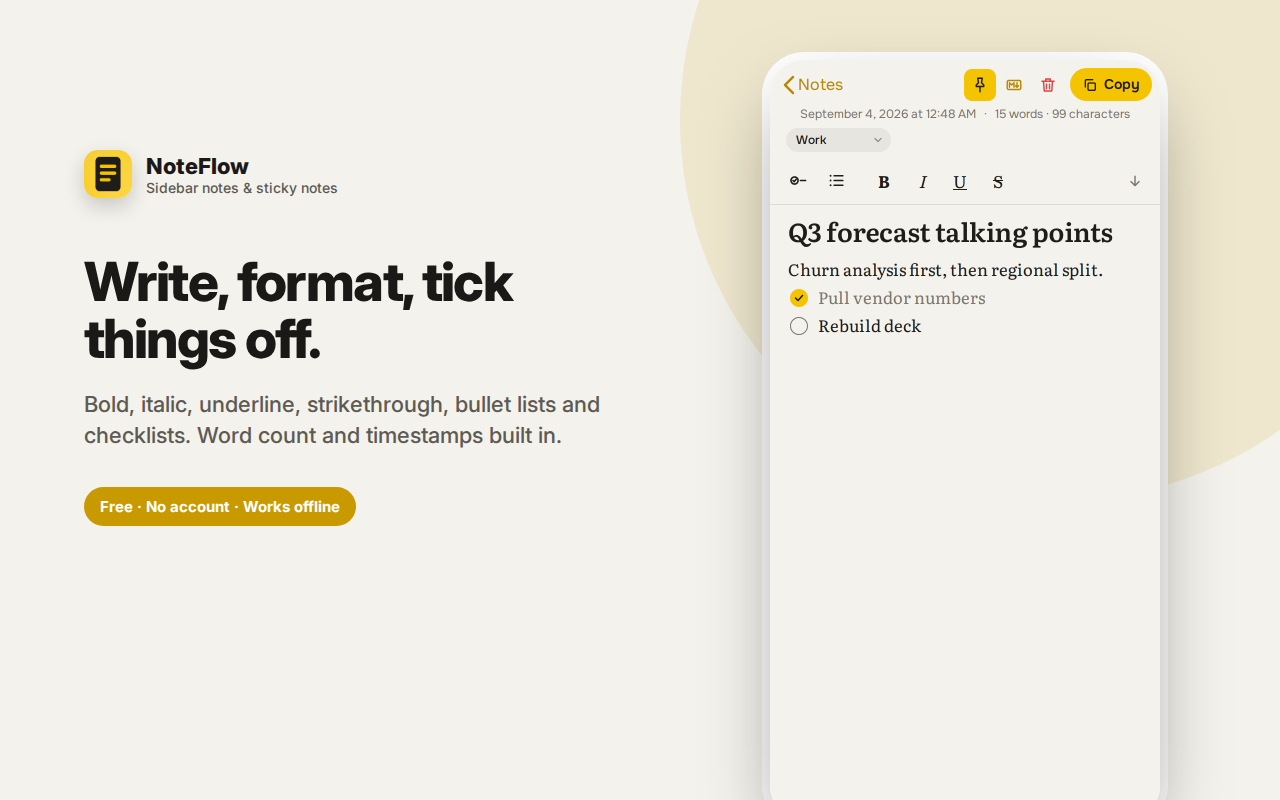
A proper editor, not a plain text box: bold, italic, underline and strikethrough, bullet lists, and checklists you can tick off, with word counts and timestamps.
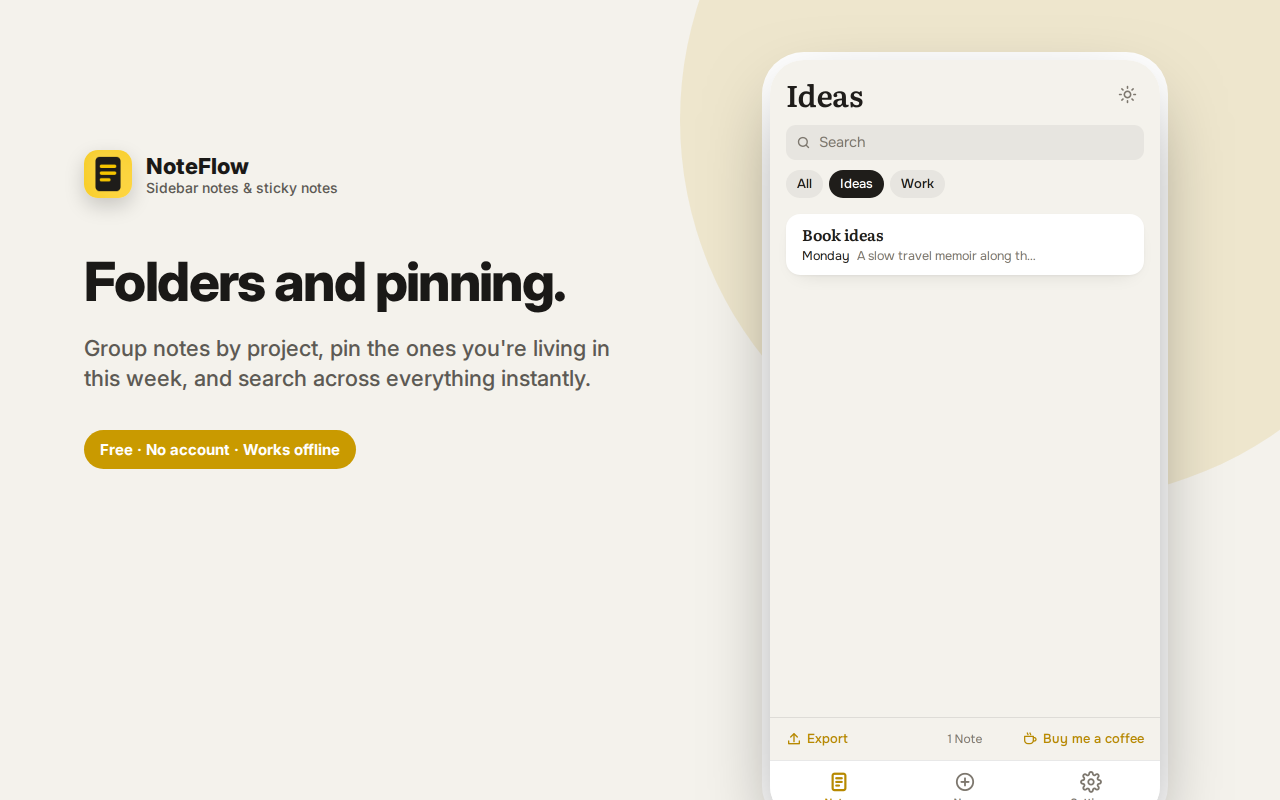
Folders act as filters, pinning keeps important notes on top, and search finds words across everything. Select text on any page and save it straight to a note with a right-click.
Every note has a one-tap copy button — the feature people end up using most. Export a note or all of them as Markdown or JSON, and import them back.
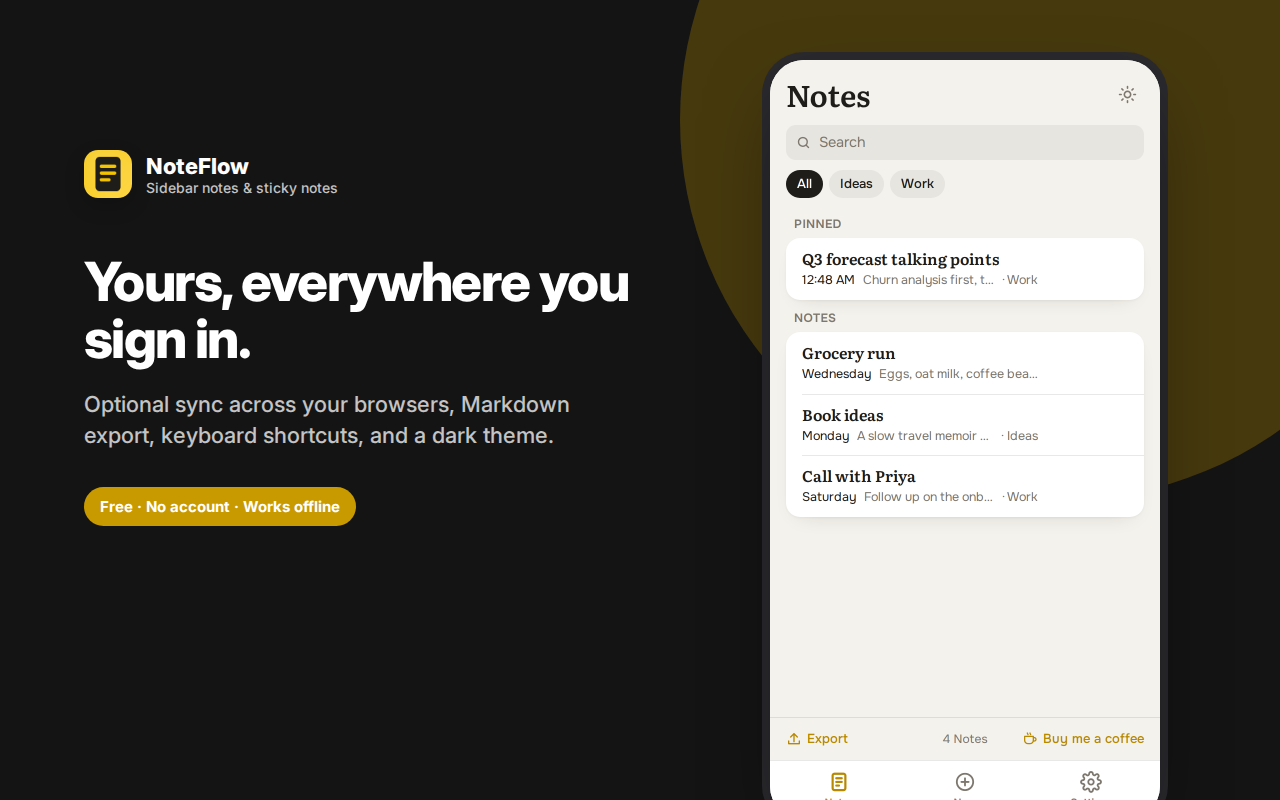
Optional sync across devices uses your browser's own account sync rather than a NoteFlow account, so there's nothing to sign up for.
Serif typography that's genuinely pleasant to write in, light and dark themes, and Alt+Shift+N to open from anywhere.
NoteFlow keeps your notes in the browser sidebar, next to whatever you're reading — so capturing a thought doesn't mean switching apps, losing your place, or opening yet another tab.
The problem with note apps and browsers
Most note-taking happens while you're doing something else: reading documentation, on a call, comparing options, working through a ticket. Every note app that lives in a separate window or tab adds a context switch, and context switches are where thoughts get lost. A note pane that's already open, in the same window, changes that entirely.
Write the way you think
NoteFlow is a proper editor, not a plain textarea:
- Formatting — bold, italic, underline and strikethrough
- Bullet lists for quick structure
- Checklists you can tick off — for to-dos, packing lists, meeting action items, or anything you work through over time
- Word and character counts built in, useful when drafting something with a length limit
- Timestamps showing when each note was created and last edited
The formatting bar can sit at the top or bottom of the editor, whichever suits how you work.
Stay organised as you accumulate notes
- Folders act as filters — Work, Personal, Ideas, Research, whatever you need
- Pinning keeps important notes at the top of the list
- Search finds words across every note instantly
- Sorting by recently updated, so what you're working on now is always first
Capture from anywhere on the web
Select text on any page, right-click, and save it straight to a note — useful for research, quotes, code snippets, or anything you want to keep without copying into another app first.
There's also an optional page linking feature: turn it on and NoteFlow remembers which page each note was written on, adding a "this page" filter so revisiting a site brings up the notes you made there. This is off by default and requires its own permission before it does anything.
One-tap copy
Every note has a copy button. This sounds minor and turns out to be the feature people use most — notes are frequently things you're going to paste somewhere else, and select-all-then-copy is more friction than it looks.
Export and import
Get your writing out whenever you want:
- Export a single note or all of them as Markdown
- Export everything as JSON for a full backup
- Import a previous export to restore
Your notes aren't held hostage in a proprietary format.
Optional sync across your devices
Turn on sync and your notes travel with your browser account (Chrome, Edge, Firefox) to your other computers. Importantly, this uses your browser's own built-in sync — not a NoteFlow account and not a NoteFlow server. There's nothing to sign up for, and your notes are subject to your browser vendor's privacy handling rather than ours. It's off by default, and it's capped at roughly 100 KB of notes by the browser itself, so heavy users should keep it local.
Who this is for
- Developers keeping snippets, commands and debugging notes beside the docs
- Researchers and students collecting quotes and sources while reading
- Support and ops teams keeping running notes during tickets and calls
- Writers capturing lines and ideas as they come
- Anyone who currently uses a scratch text file, a "notes to self" email draft, or twelve sticky notes around their monitor
Private by design
No NoteFlow account, no sign-in, no analytics, no ads, no server. With sync off — the default — your notes never leave your own browser's local storage. With sync on, they go only through your browser vendor's sync service, never through us. Uninstall the extension and your local notes go with it, so export first if you want to keep them.
Designed to be pleasant
A serif typeface for note titles and body text that's genuinely nice to write in, a warm paper-toned light theme, a proper dark theme, and a layout that doesn't waste the narrow sidebar space on chrome.
Frequently asked questions
Where are my notes stored?
In your own browser's local extension storage, on your device. With sync turned off — which is the default — they never leave your machine and no server is involved at any point.
What happens if I uninstall the extension?
Your local notes are removed with it. If you want to keep them, export as Markdown or JSON first. This is worth doing periodically regardless, as a habit.
How is sync different from other note apps?
NoteFlow has no account and no server. When you enable sync, your notes ride your browser's own built-in sync (the same mechanism that syncs your bookmarks), so they're governed by your browser vendor's privacy handling. We never see them. The tradeoff is a size limit of roughly 100 KB imposed by the browser, so it suits text notes rather than an archive.
Can I use this instead of a full note app?
For quick capture, checklists, snippets and working notes, yes — that's exactly what it's built for. For a large personal knowledge base with backlinks, attachments and years of history, a dedicated app is a better fit. Plenty of people use both: NoteFlow to catch things fast, then move what matters into a permanent home.
Does it work offline?
Completely. There's no network dependency at all.
Why a serif typeface?
Because you're going to be reading and writing prose in a narrow column, and serif faces are easier on the eye for that. Small choice, noticeable over a long session.
Does it support checklists and to-do lists?
Yes — proper checkboxes you tick off, not just dashes. Good for packing lists, meeting actions and anything you work through over time.
Can I format text?
Bold, italic, underline, strikethrough and bullet lists, with the formatting bar positioned at the top or bottom as you prefer.
Can I export my notes?
Yes, as Markdown or JSON, individually or all at once. Nothing is locked in a proprietary format.
Sidebar notes instead of sticky notes
Physical sticky notes work because they're always visible and cost nothing to write on. They fail because they get lost, can't be searched, and don't survive a desk tidy.
Sidebar notes keep the first property and fix the second: always one click away, searchable across everything you've written, organised into folders, and still there next month.