
Right Click Enable – Copy & Select Unlocker
Enable right click and allow copy on sites that block them. Restores the context menu, text selection, copy and drag.
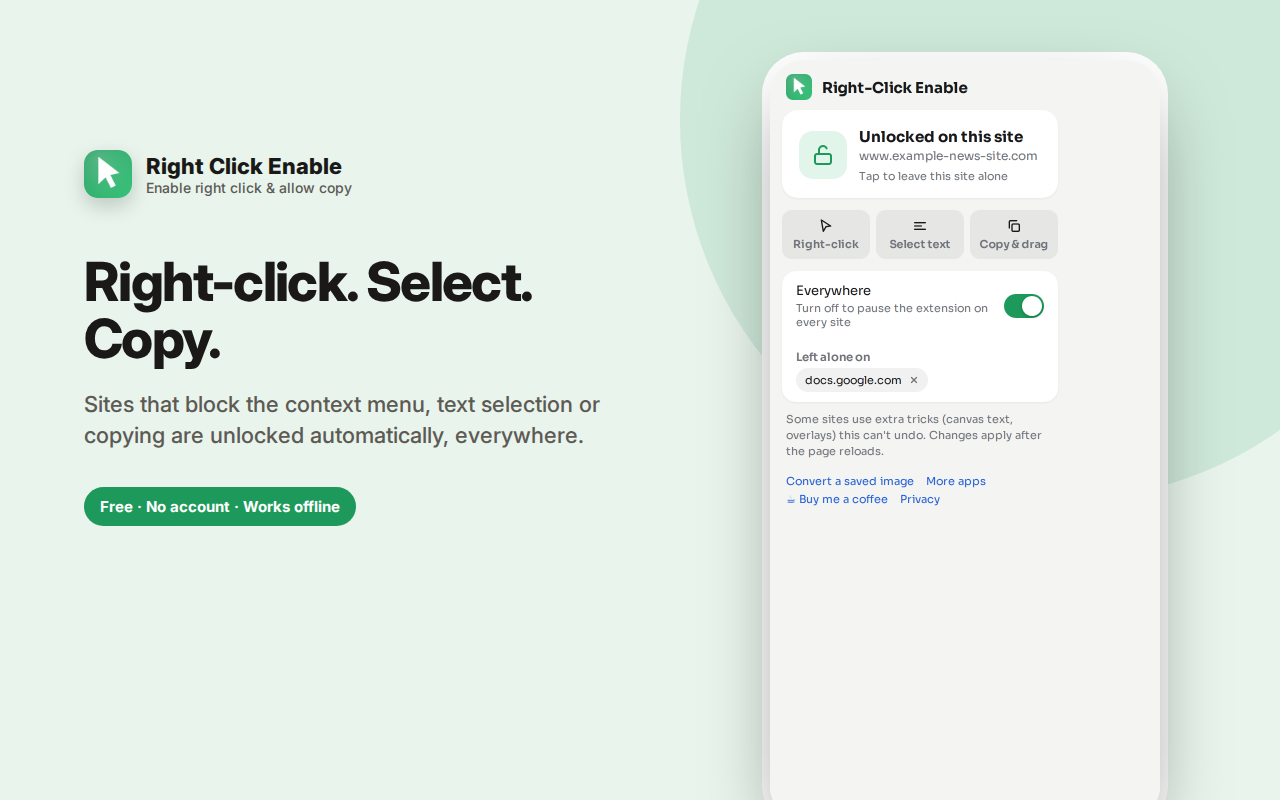
Right Click Enable restores the right-click menu, text selection and copying on websites that block them.
You highlight a paragraph and the selection snaps away. You right-click an image and nothing happens. You press Ctrl+C and a pop-up says copying isn't allowed. This turns all of that back on.
It restores the context menu (including View Image and Inspect), text selection and highlighting, copy, cut and paste shortcuts, and dragging images and links — by reversing the scripts and CSS that suppress them, returning your browser to its default behaviour.
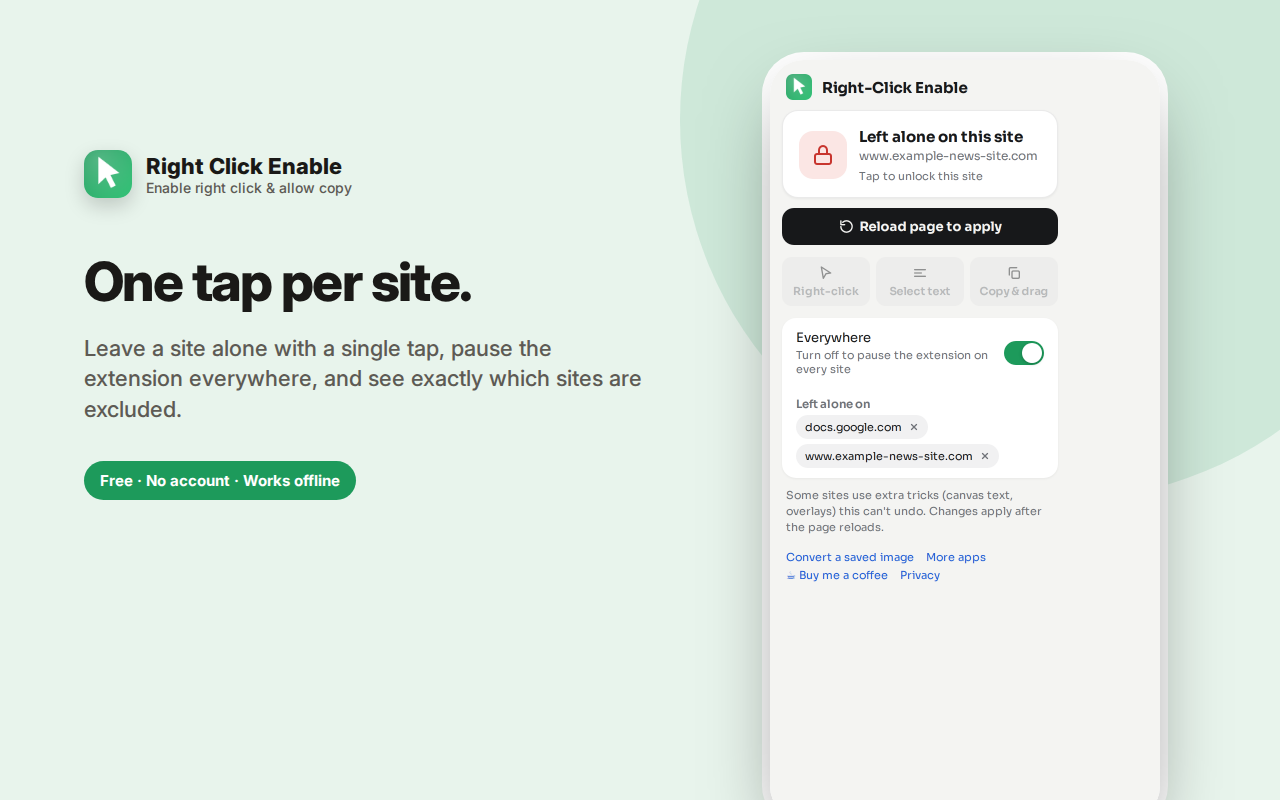
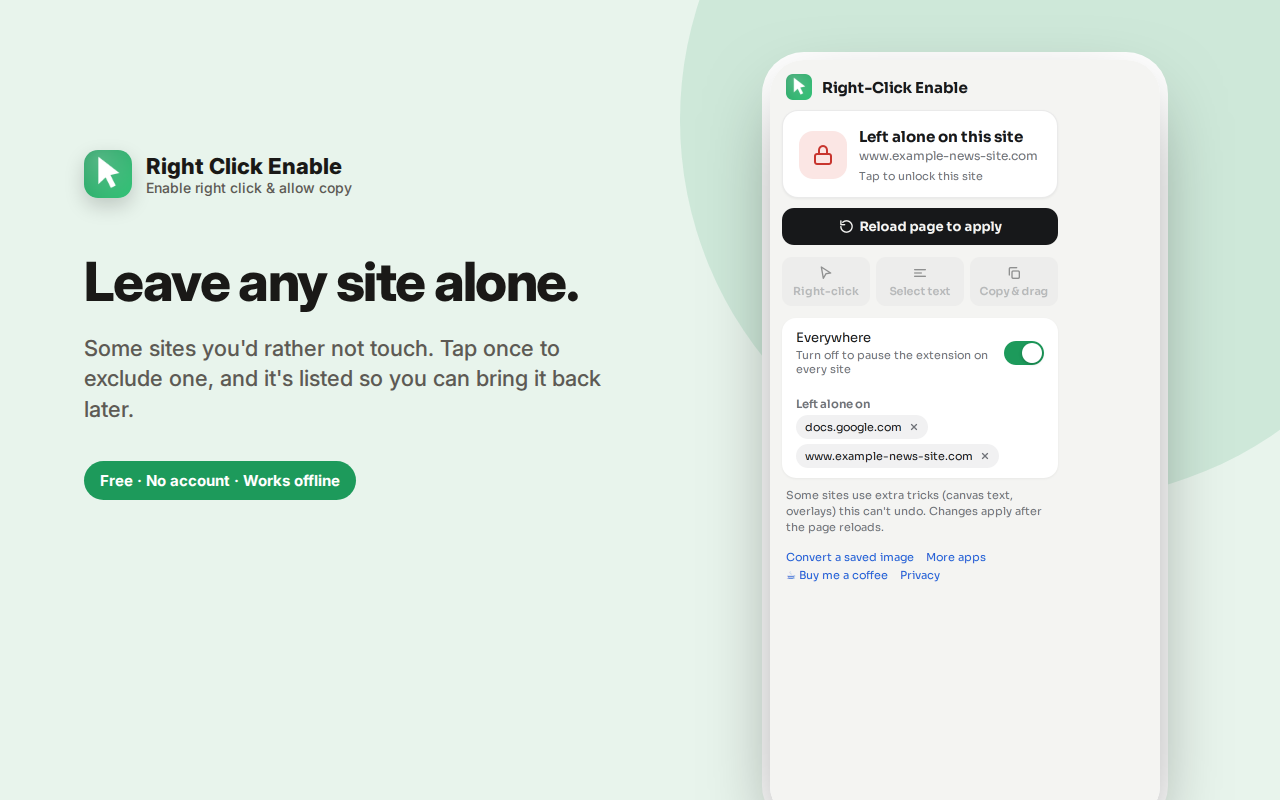
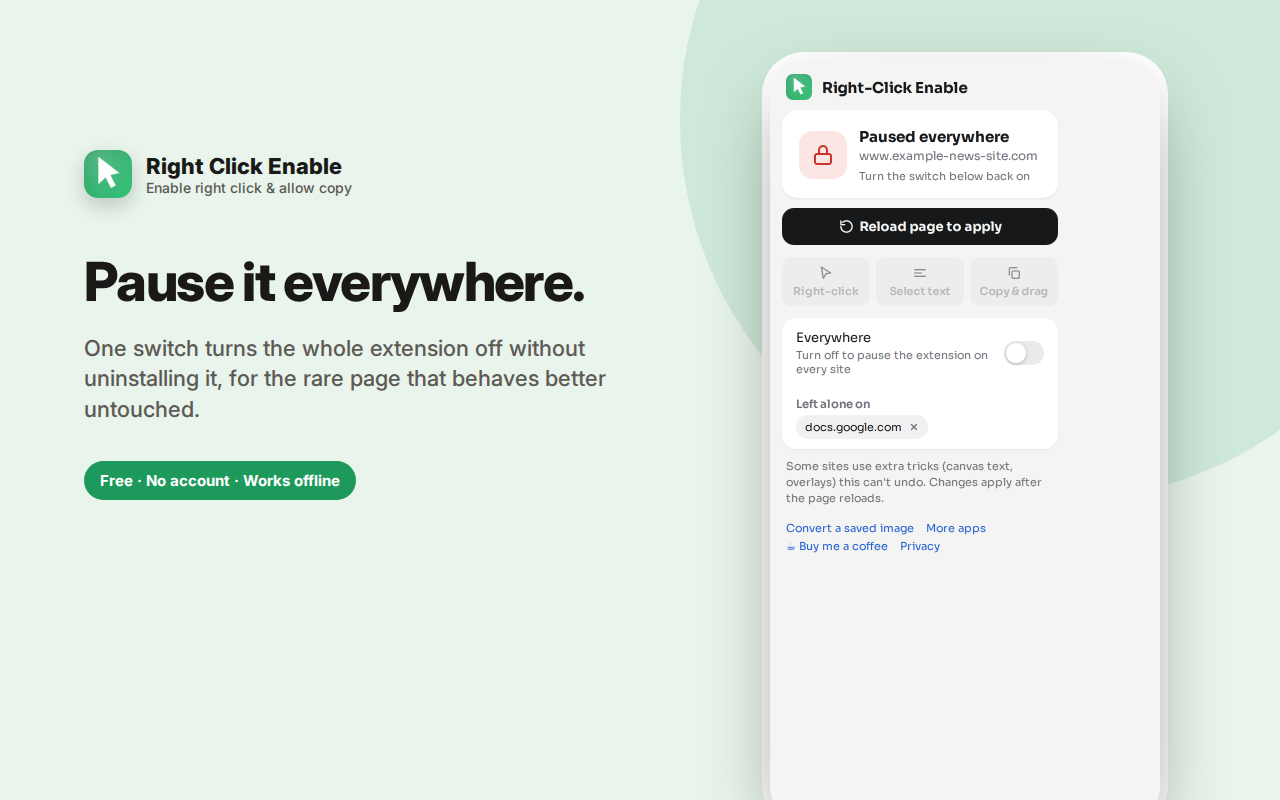
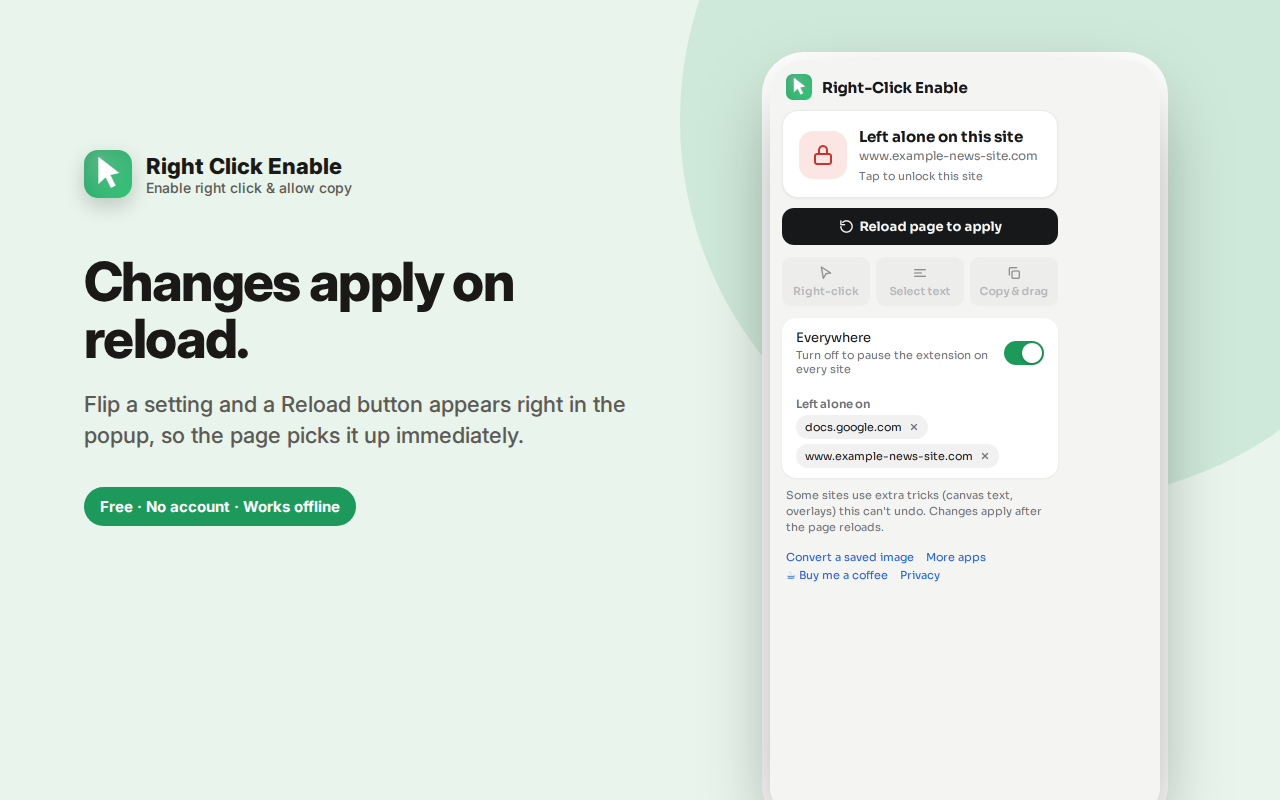
Open the popup to see the current site's status and tap once to leave that site alone, or pause the extension everywhere with a single switch. Excluded sites are listed so you can restore any of them.
No page content is read, collected or transmitted. There's no server and no account.
Right Click Enable restores the right-click menu, text selection and copying on websites that block them — one tap, any site, nothing collected.
The problem
You highlight a paragraph to quote it and the selection snaps away. You right-click an image to check its source and nothing happens. You press Ctrl+C and a pop-up tells you copying is not allowed. Some sites disable the context menu entirely, others block selection with CSS, others intercept keyboard shortcuts.
It's almost always pointless. The content is already in your browser — anyone determined can read the page source, use developer tools, or take a screenshot. What these blocks actually stop is ordinary, legitimate use: quoting a source, copying a recipe ingredient, saving a reference, checking where an image came from.
What it restores
- The right-click context menu — including View Image, Open in New Tab, Inspect and everything else the browser normally offers
- Text selection and highlighting
- Copy, cut and paste keyboard shortcuts
- Dragging images and links
How it works
The extension reverses the specific techniques sites use to block these actions: contextmenu event handlers, selectstart and copy blockers, the user-select: none CSS rule, keyboard-shortcut interception, and pointer-event tricks that make content unclickable. It restores default browser behaviour rather than adding anything new.
One tap per site
Open the popup and you see the current site's status at a glance, with a big lock icon: unlocked or left alone. Tap it to toggle. Sites you've excluded are listed so you can restore any of them later, and a single switch pauses the extension everywhere if you need default behaviour back temporarily.
A Reload page button appears when a change needs a refresh to take effect, so you're not left wondering why nothing happened.
Frequently asked questions
Does it work on every site?
It works on the overwhelming majority. Some sites use techniques that can't be reversed by restoring browser defaults — text rendered onto a canvas element or as images isn't selectable because it isn't text, and content inside certain embedded viewers is outside a content script's reach. The popup is upfront about this rather than claiming to work everywhere.
Is this legal?
Restoring your own browser's normal functionality is not the same as ignoring copyright. Copying text for personal reference, quoting with attribution, or checking an image's source are ordinary uses. Republishing someone's content as your own is a copyright issue regardless of what any extension does — the law applies the same either way.
Why do some sites block right-click at all?
Usually to deter casual copying of text or images. It's widely considered ineffective — the content is already downloaded to your device to be displayed — and it's been discouraged as a usability anti-pattern for years, but it persists on stock photo sites, some publishers, recipe blogs and course platforms.
Does it collect my browsing data?
No. The extension runs a small script on pages to undo the blocking, and that's all it does. It doesn't read page content, doesn't record which sites you visit, and doesn't transmit anything anywhere. There's no server.
Why does it need access to all sites?
Because a blocked right-click could be on any site. It requests broad access so it can work wherever you need it, and you can exclude any site individually.
Will it interfere with sites that use right-click for their own menu?
Some web apps (design tools, maps, editors) deliberately replace the context menu as a feature. If a site's custom right-click menu is something you want, add that site to the exclusion list in one tap.
Why do websites disable right click?
Usually to deter casual copying of text or images. It's widely regarded as ineffective — the content is already on your device to be displayed — and as a usability anti-pattern, but it persists on stock photo sites, recipe blogs, course platforms and some publishers.
Can I copy text from a site that blocks selection?
Yes, that's the core function. Selection, highlighting and the copy shortcut are all restored.
Does it work on protected images?
It restores the right-click menu, so View Image and Open in New Tab work again. It can't extract images that are rendered onto a canvas or served only as background layers.
Will it break sites with their own right-click menus?
Some web apps replace the context menu deliberately as a feature. If you want a site's custom menu, add that site to the exclusion list in one tap.
Does it collect anything?
No. It doesn't read page content, doesn't record which sites you visit, and has no server to send anything to.
Right Click Enable restores right-click, text selection and copy on sites that block them — a small, free, private way to get your browser's normal behaviour back.
Who this is for
- Students and researchers quoting and citing sources
- Writers and journalists collecting quotes accurately rather than retyping them
- Anyone copying a recipe, a code snippet, an address or a phone number
- Developers who need Inspect Element on any page
- People using translation tools that require selecting text
- Anyone using accessibility tools that depend on text selection — blocked selection can make a site unusable with a screen reader or text-to-speech
Private by design
No account, no sign-in, no cloud, no analytics, no ads, no server. Your site preferences are stored locally in your own browser. Page content is never read, collected or transmitted.
When you'll notice it most
Recipe sites — famous for blocking selection, so you can't copy an ingredient list into a shopping app.
Stock photo and portfolio sites — right-click disabled to deter image saving, which also stops you opening an image in a new tab to look at it properly.
Course and training platforms — selection blocked on lesson text, so you can't copy a definition into your own notes.
Documentation behind a wrapper — some hosted docs block copy, which is genuinely painful when you're trying to copy a command.
Publishers with copy-protection scripts — usually paired with a pop-up telling you copying isn't permitted.
A note on how to use it well
The extension gives you back normal browser behaviour; what you do with the content is still on you. Quoting with attribution, saving a reference for yourself, copying a command, checking an image source — all ordinary. Wholesale republication of someone's writing or photography isn't, and no browser setting changes that.
If a site's custom right-click menu is genuinely useful — as in design tools, mapping apps and online editors — add it to the exclusion list rather than turning the extension off globally. That's what the per-site control is for.
How to enable right click on a website that blocks it
Install the extension and it works immediately — that's the whole answer. To enable right click on a specific site, do nothing; it's on by default everywhere. To turn it off for one site, click the toolbar icon and tap the tile.
The same mechanism is what makes it allow copy and restore text selection: the extension reverses the scripts and CSS that suppress those actions, returning your browser to its default behaviour rather than adding anything new.