
Screenshot – Capture, Annotate & Save to PDF
Screenshot tool and screen capture: capture, crop, annotate, blur, then copy, save or combine screenshots into a PDF.
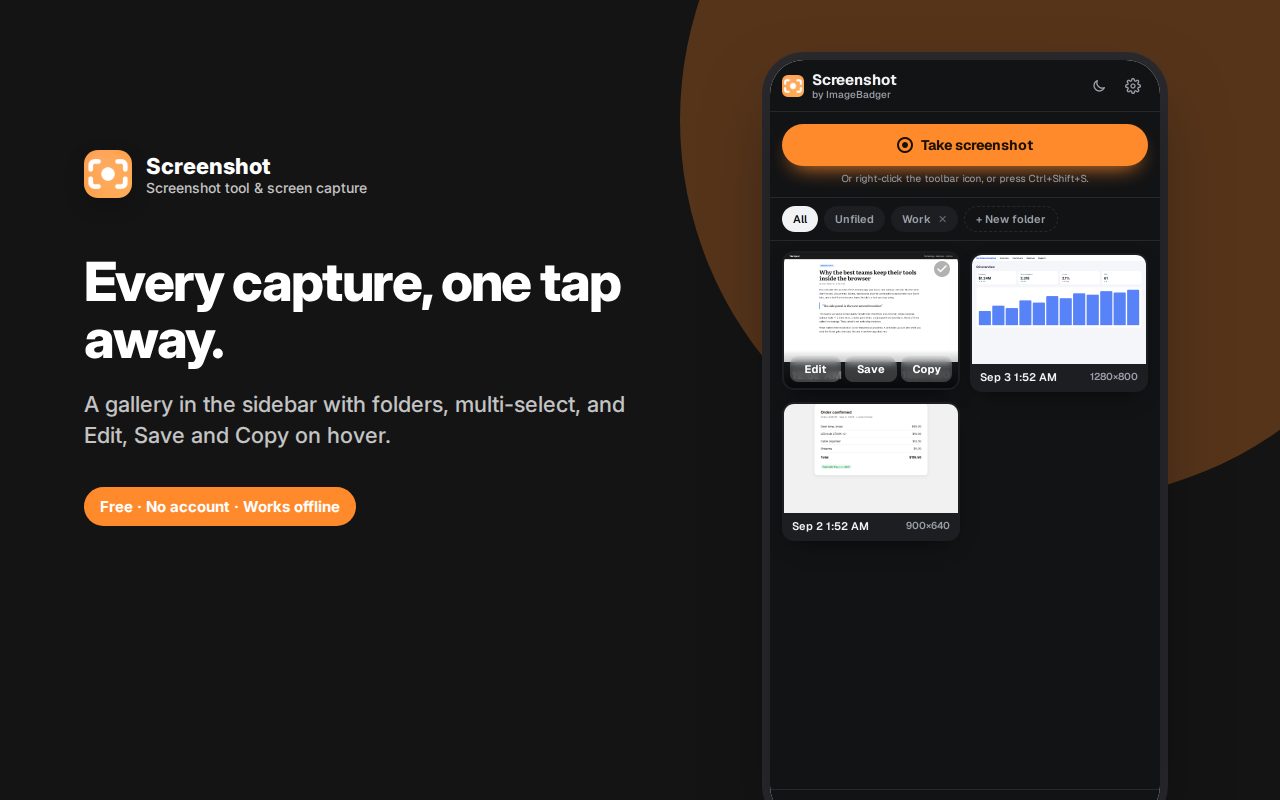
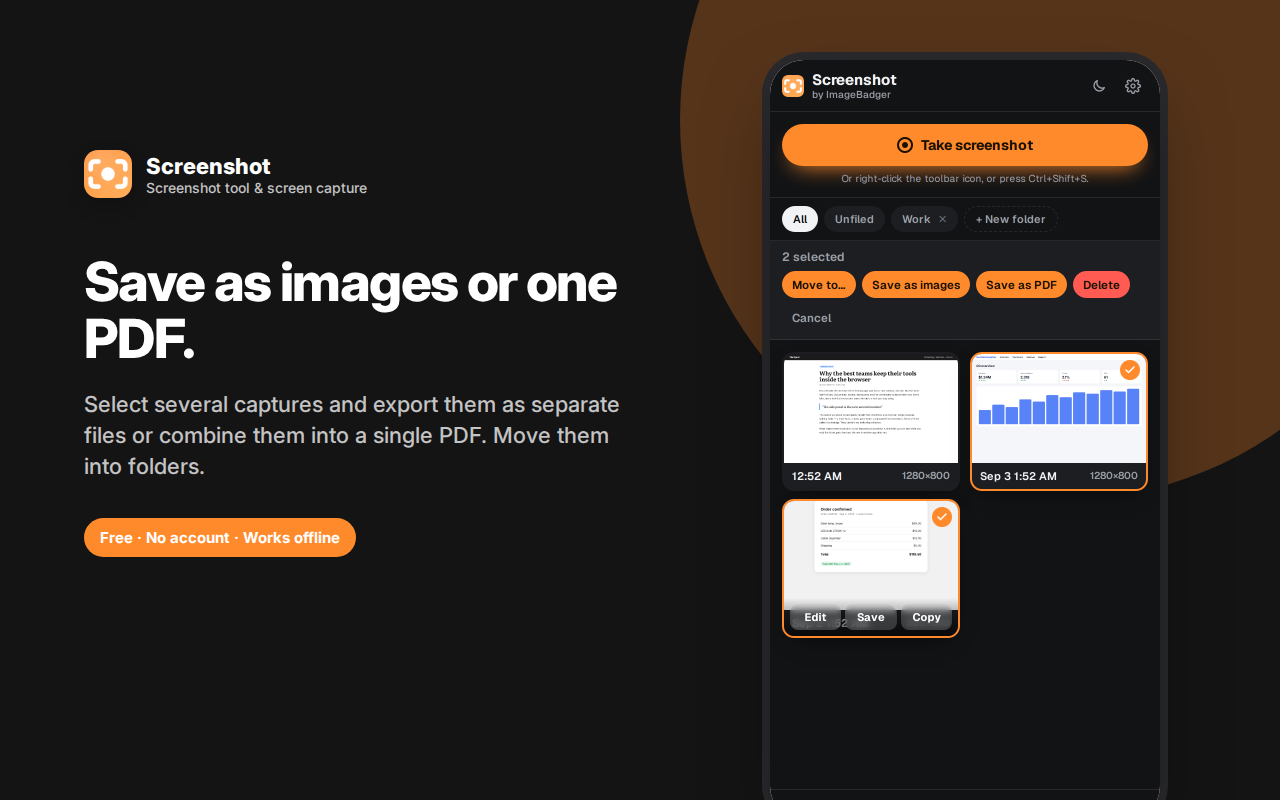
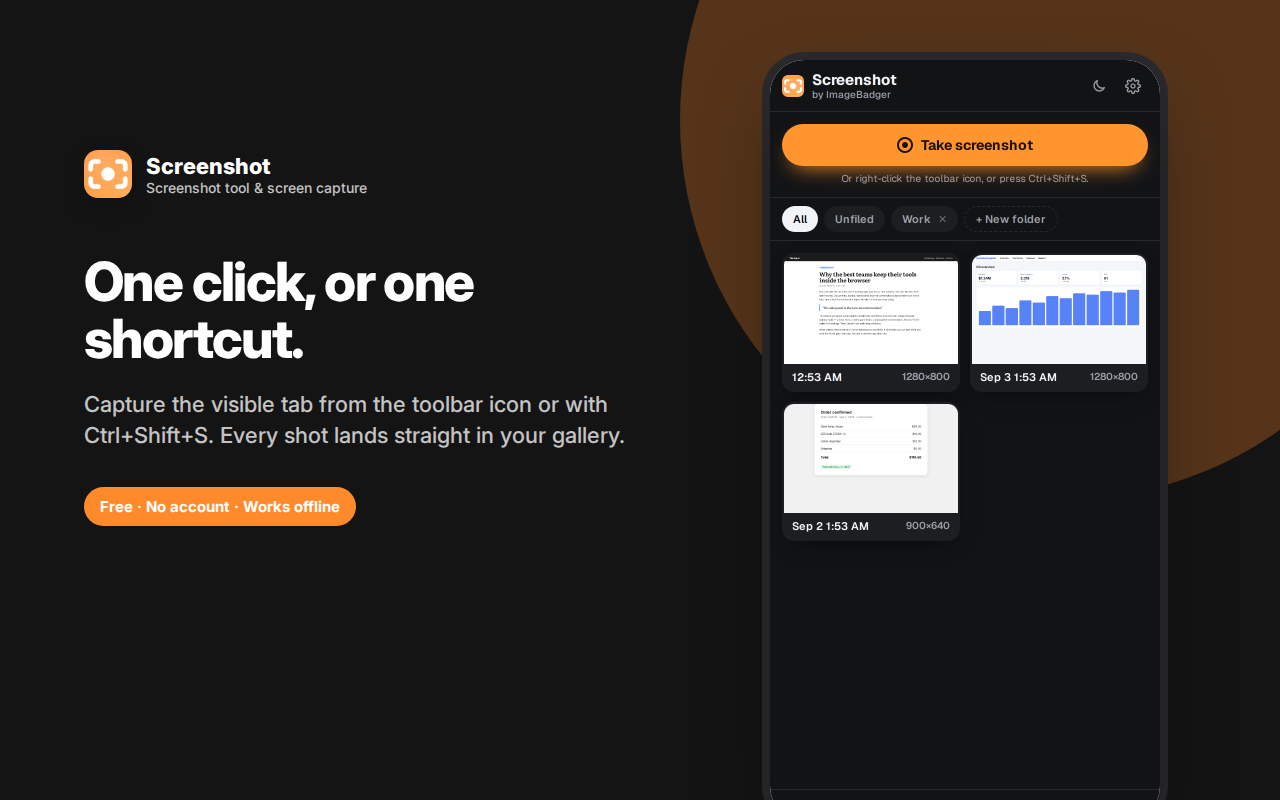
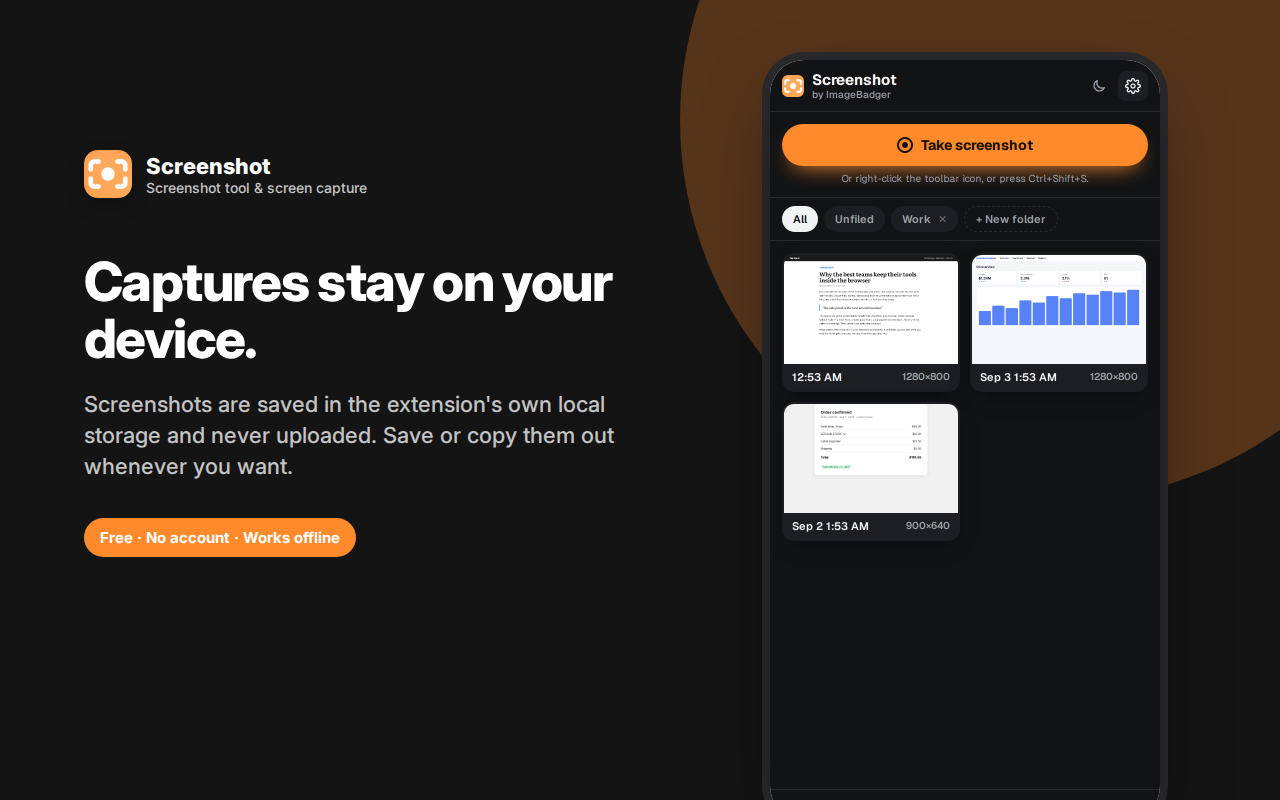
Screenshot captures the page you're looking at and keeps every capture organised in your browser sidebar.
Click the toolbar icon, press Ctrl+Shift+S, or right-click the page. Captures land in a gallery with thumbnails, times and dimensions — sortable into folders you create, so a week of captures stays navigable.
Open any capture in the editor to crop, draw arrows and shapes, add text, and blur anything sensitive before you share it.
Export the way you need: save as an image, copy straight to the clipboard, save several as separate files, or combine multiple screenshots into a single PDF — one capture per page. That last one is ideal for bug reports, expense receipts and step-by-step guides.
Captures are stored in your browser and never uploaded — unlike screenshot tools that upload to generate a share link.
Screenshot captures the page you're looking at, keeps every capture organised in your browser sidebar, and lets you annotate, combine and export them — without a single file leaving your device.
Capture, then find it again
Most screenshot tools solve capture and then abandon you: the image lands in a Downloads folder full of files called Screenshot 2026-09-03 at 14.22.11.png, and finding the right one later means opening six of them.
This one keeps a gallery. Every capture appears as a thumbnail with its time and dimensions, in a panel that's one click away while you work. Sort them into folders you create — Bug reports, Receipts, Research, Design refs — so a week of captures is still navigable.
Capture the way you prefer
Click the toolbar icon, use Ctrl+Shift+S, or right-click the page. Captures are of the visible tab, taken only when you ask — there's no background capturing, no continuous recording, and nothing happens without your explicit action.
Annotate before you share
Open any capture in the editor to:
- Crop to the part that matters
- Draw arrows and shapes to point at the thing you're talking about
- Add text for labels and explanations
- Blur anything sensitive — account numbers, email addresses, names, faces
That last one matters more than it sounds. Bug reports and support tickets are one of the most common ways personal data leaks out of a company, usually because someone screenshotted a whole dashboard.
Export the way you need
- Save as a PNG image
- Copy straight to the clipboard, ready to paste into Slack, a doc or an email
- Select several captures and save them as separate images in one go
- Select several and combine them into a single PDF — one capture per page
The multi-page PDF is the feature people don't expect and then use constantly: a bug report walkthrough, a receipt bundle for expenses, a step-by-step guide, or documentation of a process, all as one file you can attach anywhere.
Frequently asked questions
Can it capture a full page, beyond what's visible?
Currently it captures the visible area of the tab. For a long page, capture the sections you need and combine them into a PDF — which is often more readable anyway than one enormously tall image.
Where are my screenshots stored?
In the extension's own storage in your browser, on your device. They're not in your Downloads folder unless you explicitly save one, and they're never uploaded anywhere.
Do captures survive a browser restart?
Yes, the gallery persists. Uninstalling the extension removes them, so save anything you want to keep permanently.
Can I capture a video or a PDF in a tab?
It captures what's rendered in the visible tab, so a paused video frame or a displayed PDF page works. Some content protected by DRM will appear black — that's a browser-level restriction, not something an extension can bypass.
Why not just use the operating system's screenshot key?
For a quick one-off, that's often fine. This is for when you take a lot of them: the gallery, folders, annotation, clipboard copy and multi-page PDF export are the difference between a screenshot key and a screenshot workflow.
Does it work offline?
Yes, entirely. There are no network requests.
How do I blur sensitive information?
Open the capture in the editor and use the blur tool over anything private — account numbers, email addresses, names. The pixels are genuinely redrawn, not covered with a removable shape.
Can I turn screenshots into a PDF?
Yes. Select several captures and export them as one PDF, one capture per page — useful for bug reports, expense receipts and step-by-step guides.
Who this is for
- Support and QA teams filing bug reports with annotated evidence
- Developers capturing UI states and console output
- Designers collecting reference and inspiration
- Anyone doing expenses — screenshot receipts, export as one PDF
- Teachers and trainers building step-by-step guides
- Researchers capturing sources before pages change or disappear
Private by design
No account, no sign-in, no cloud, no analytics, no ads. Captures are stored locally in your browser and never transmitted anywhere. There's no server, which for a tool that takes pictures of your screen is the only responsible architecture — many screenshot tools upload to generate a share link, and that means your screen contents sit on someone else's infrastructure.
Workflows people build with it
Bug reports that don't need a follow-up question. Capture the broken state, draw an arrow at the problem, blur the customer's email address, and copy it straight into the ticket. One image, fully explained, no back-and-forth.
Expenses without the shoebox. Screenshot each receipt as it arrives in your inbox over the month, keep them in a folder, then select all and export a single PDF at month end.
Step-by-step guides. Capture each stage of a process, annotate the click target on each, and combine into one PDF — a usable walkthrough in a few minutes, without opening a document editor.
Research that survives the source. Web pages change and disappear. Capturing what you're citing means your reference still exists in six months.
Design collection. A folder of interface references, captured as you browse, with the gallery making them actually browsable later rather than lost in Downloads.
A note on blurring
The blur tool is for hiding sensitive details, and it works by genuinely redrawing those pixels — not by laying a shape on top that could be removed. Still, apply it generously: partially blurred text can sometimes be inferred from context and length, so cover a bit more than feels necessary.
A screenshot tool, not just a screen capture key
Your operating system already has a screen capture shortcut, and for a single quick image it's fine. What it doesn't give you is anywhere to put the result.
This is a screenshot tool in the fuller sense: captures land in an organised gallery with folders, can be annotated and blurred before sharing, copied straight to the clipboard, and exported as a multi-page PDF.